Track Your Attendees
Registration tracking of your attendees is highly effective in measuring the success rates of email and social media campaigns. Here is how to create tracking links and view the success ratios.
The data is immediately available in the event report.
Set up Tracking
This configuration is usually created during event creation.
- Edit your event (if you have not added tracking). If you are editing an event, you can skip this part. To edit an event, go to the One-time Events or Recurring Events tab.
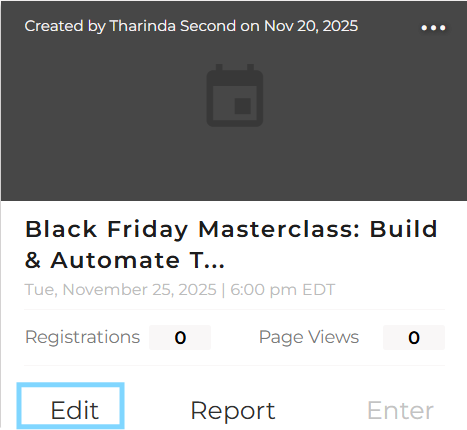
- Find the event, and then click the Edit option
- Go to the "Settings" option at the top from the steps

- Scroll and find "Track Registration Sources"
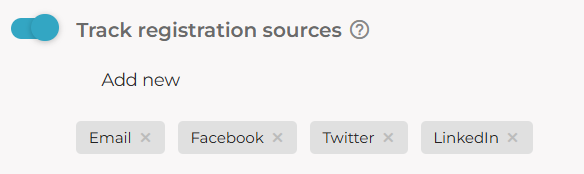
- Click "Add" to add some tracking links. You can create new links at your will. When you create it be sure to add the unique tracker id (two letters) properly. For example, LI or LN for LinkedIn
- Once you add them you will see the following
- Go ahead and save the event (Submit)
View the Tracking Links
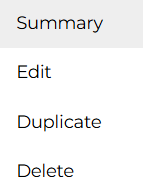
- You will see an event summary on this page. If not, go back to the event list, and click the Meatball icon in the event card (on the upper right)

- Click the "Summary" option
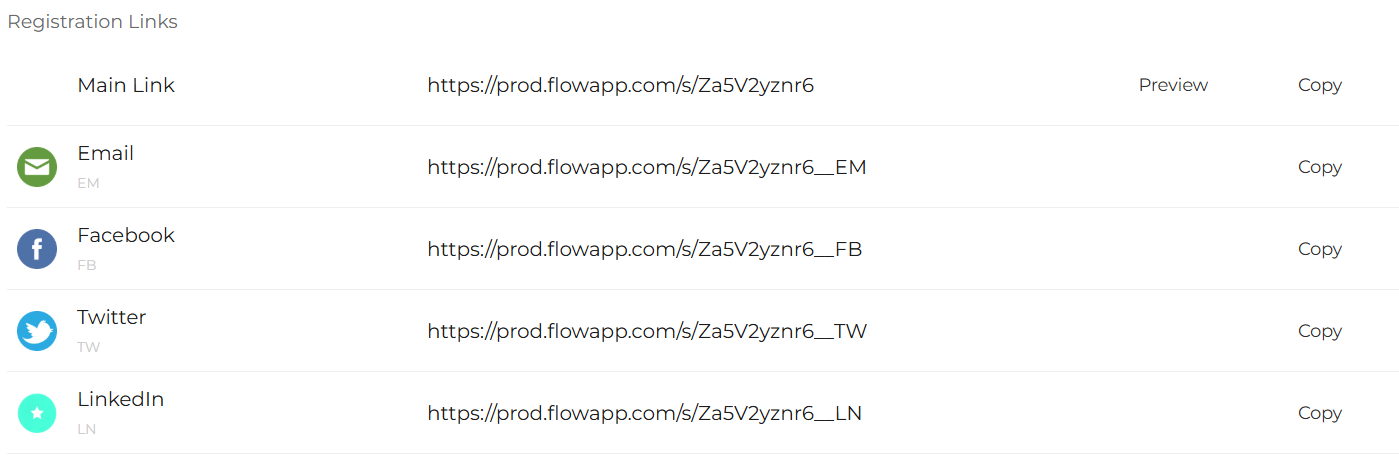
- View and Copy the links from here and share with the social media posts.
View The Tracking Stats
- Click the "Report" option (see 1)
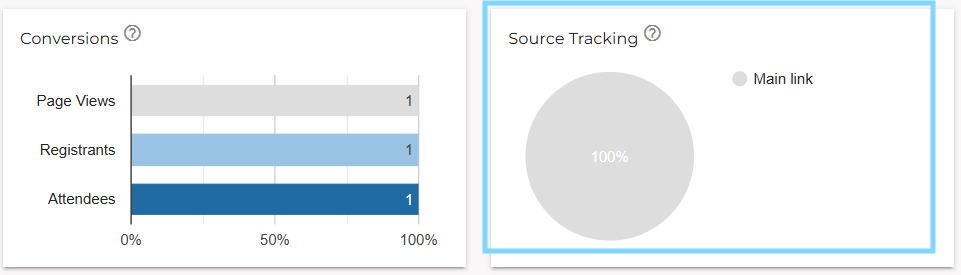
- Find the Source Tracking graph (there shall be multiple sections if you use more than one tracking link, unlike here). You can also view the details in the downloadable CSV report.
Was this article helpful?
That’s Great!
Thank you for your feedback
Sorry! We couldn't be helpful
Thank you for your feedback
Feedback sent
We appreciate your effort and will try to fix the article