Here are the steps on how to view recordings (Organizer view and On-demand)
Organizer View
Look for the event you want to download the recording from your flow dashboard. This can be found in the “past events” from your dashboard.
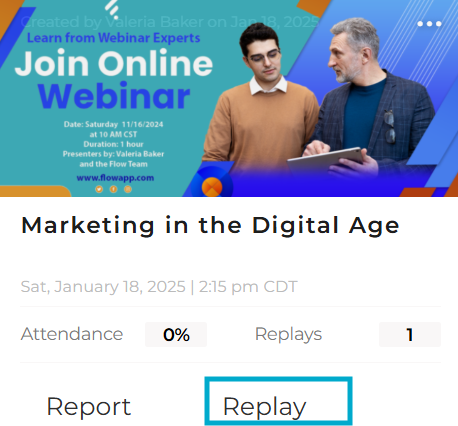
Registered User's View (Attendee)
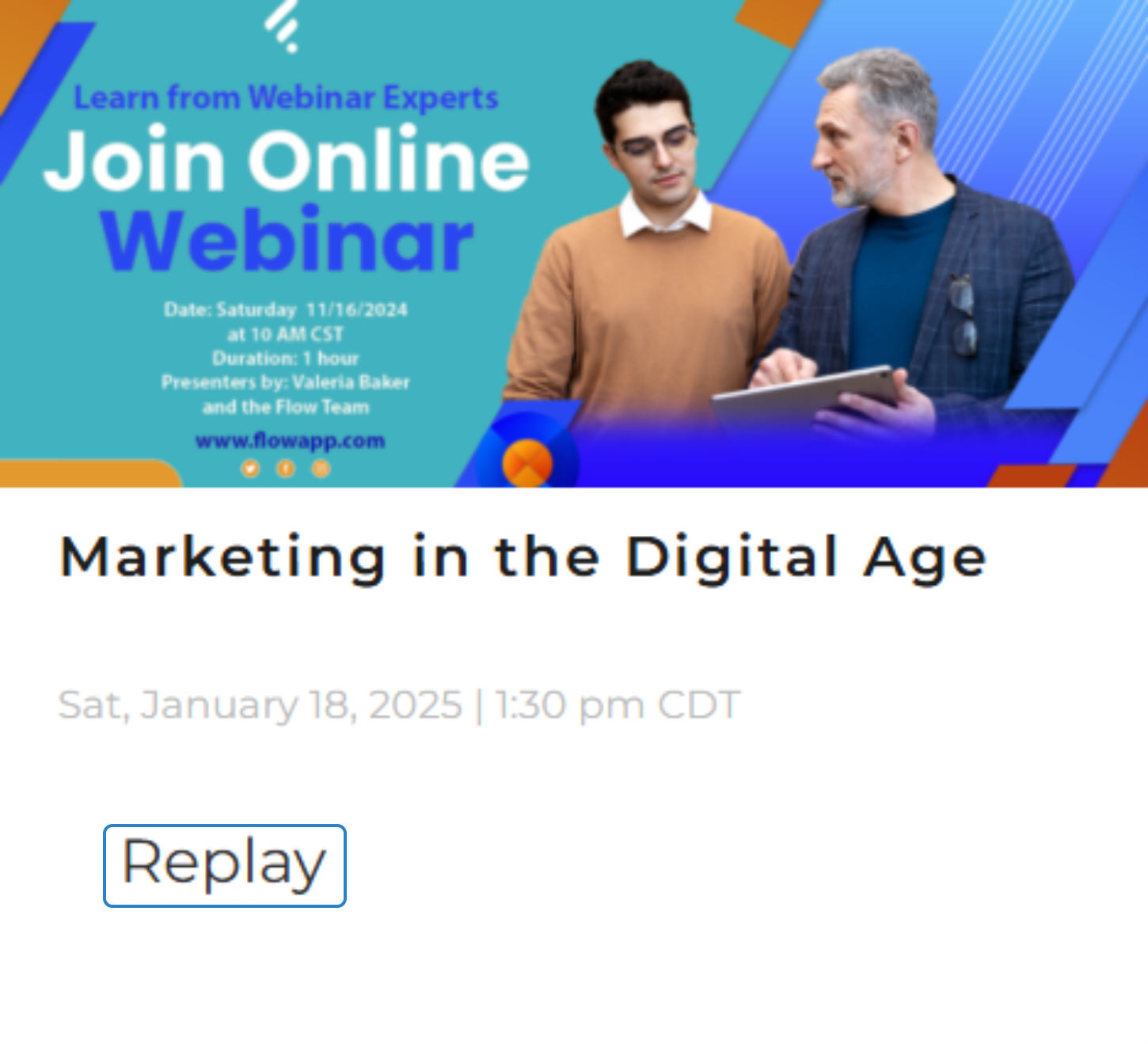
On-Demand View: Event Registrants
- Use your registration confirmation email / access link to view the webinar replay. If you have not registered earlier, you can still request a link from the host to access it on-demand (the option must have been enabled prior to the event or enable in the Summary Page under the past events)
- Register from the link provided by your organizer
- An access link and verification code to the replay will be sent to your email
- Open the access link and enter the verification code to access the on-demand recording.
The replay and on-demand should be enabled on the event to access the recording, otherwise, the replay and the recording won’t be available for attendees.
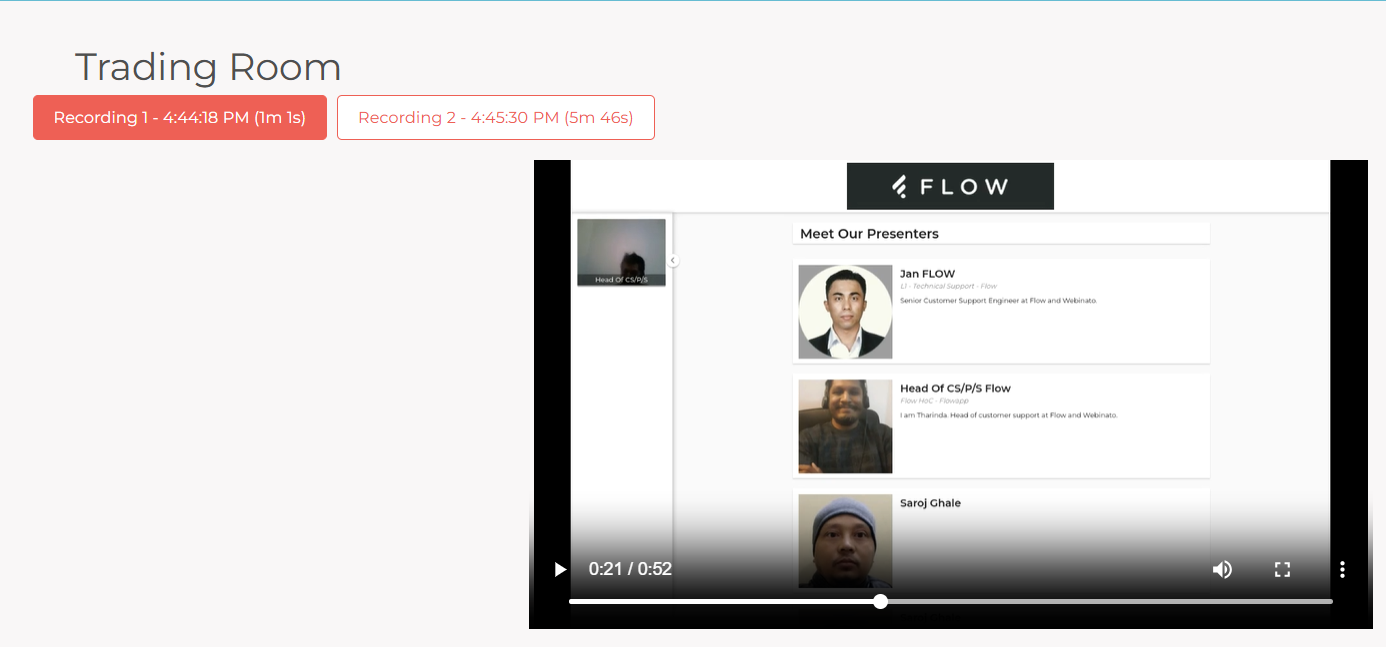
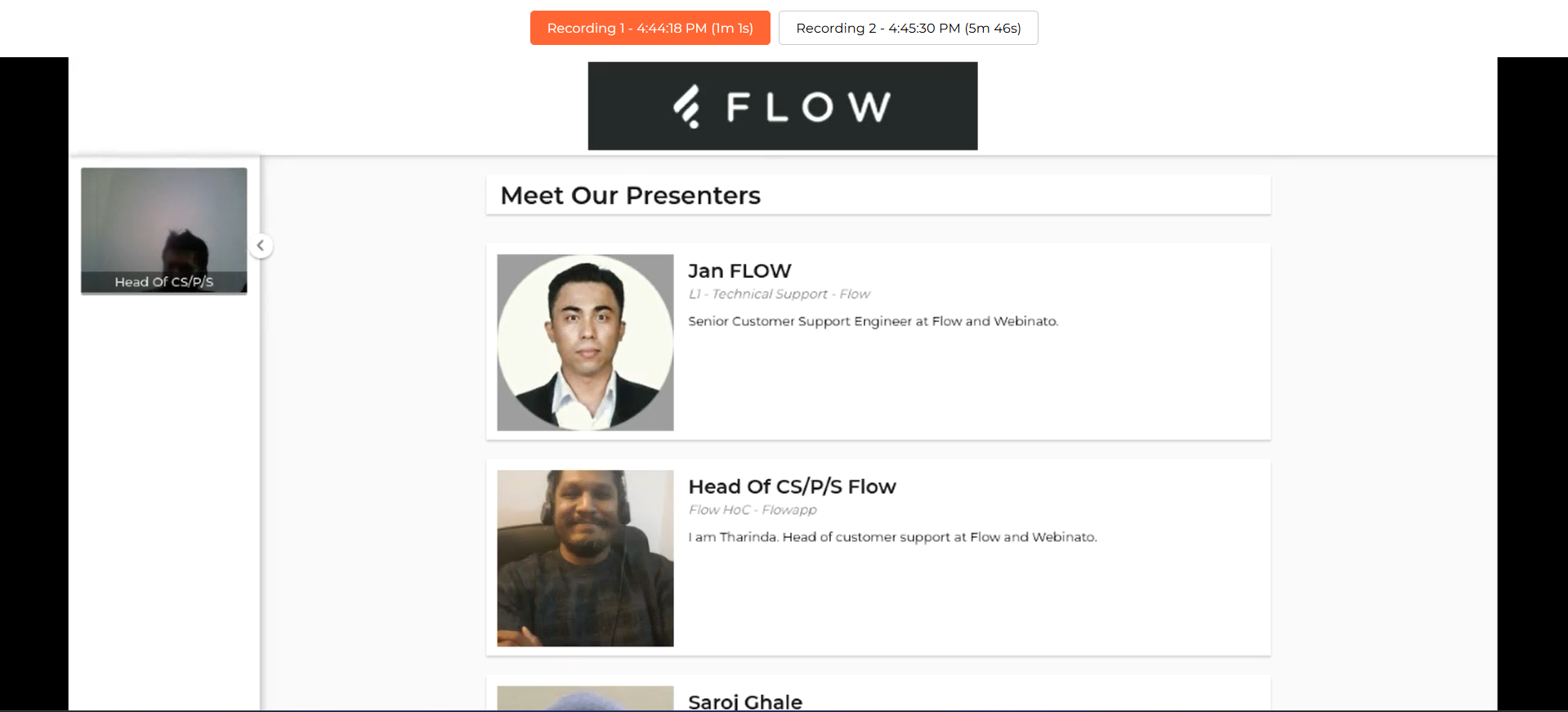
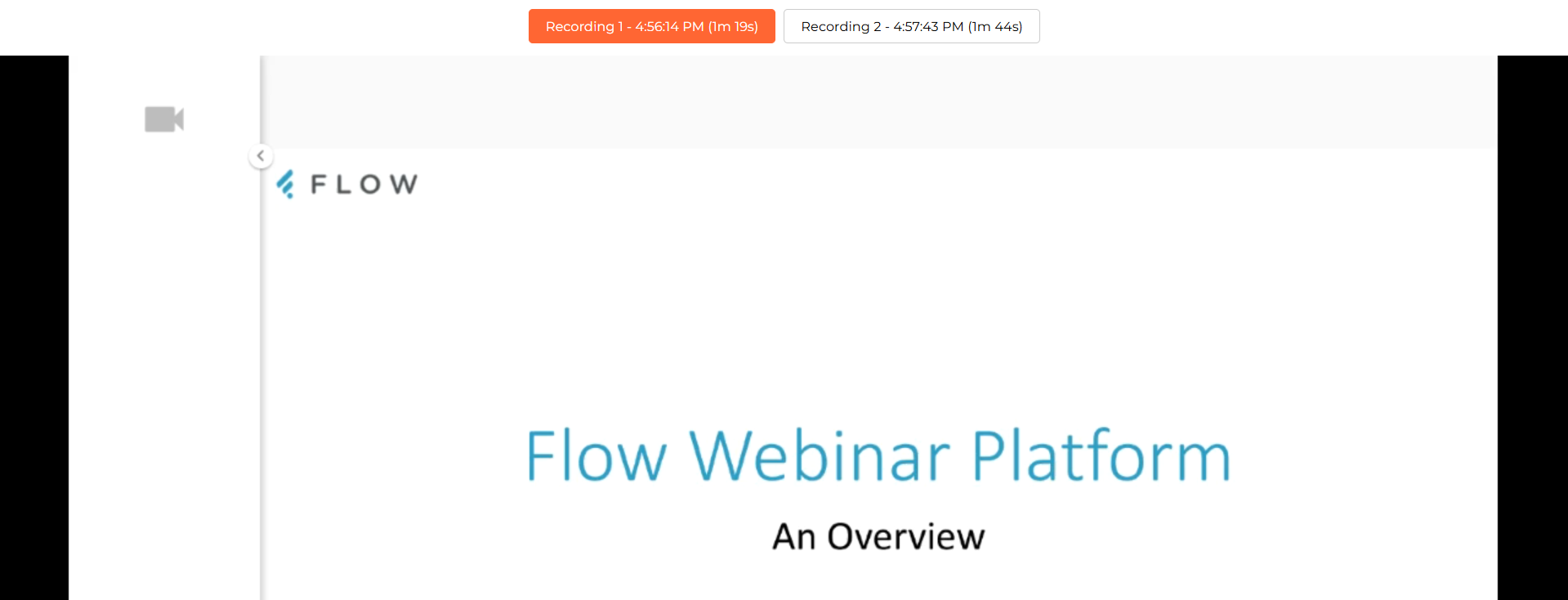
Viewing Multiple Recordings
Now you can view the recordings in the Summary of Past Events!
- Go to Past Events tab > Click on the meatball icon at the upper right > Summary (see the image below)
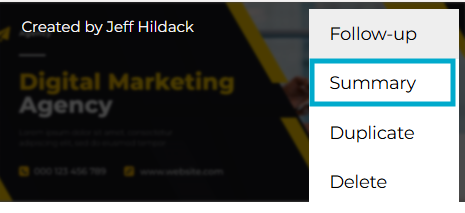
- Click any of the recordings to access them
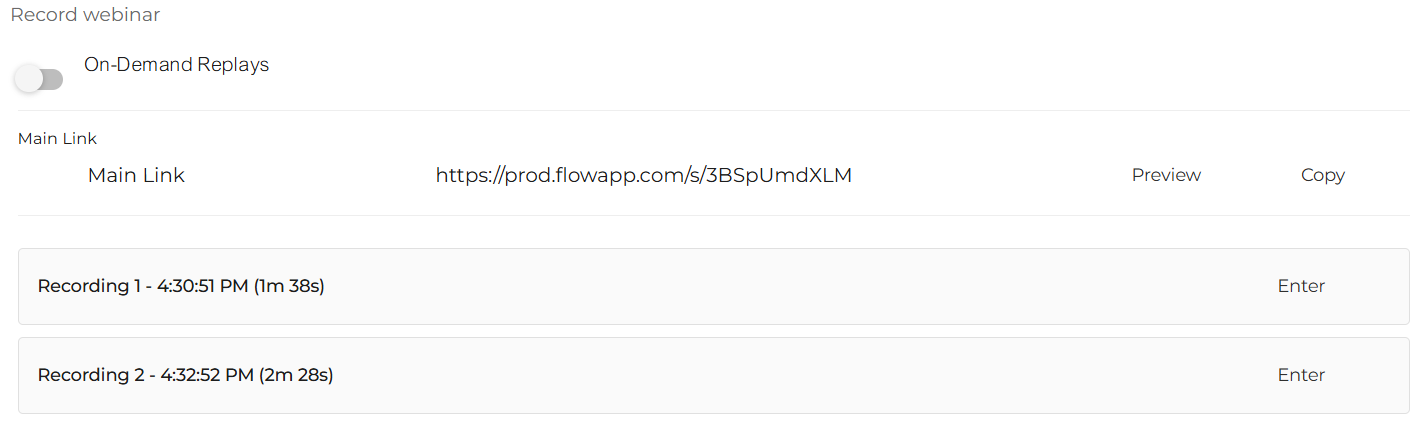
Viewing Multiple Recordings: Role
- Admin View (with Dashboard Access)
Registered User with Dashboard Access
Host/Presenter/Attendee without Dashboard Access
Was this article helpful?
That’s Great!
Thank you for your feedback
Sorry! We couldn't be helpful
Thank you for your feedback
Feedback sent
We appreciate your effort and will try to fix the article