Automatic Recording
Automatic Recording is enabled by default. To view the settings
- Click the meatball menu item at the upper right corner of an event card or a webinar room
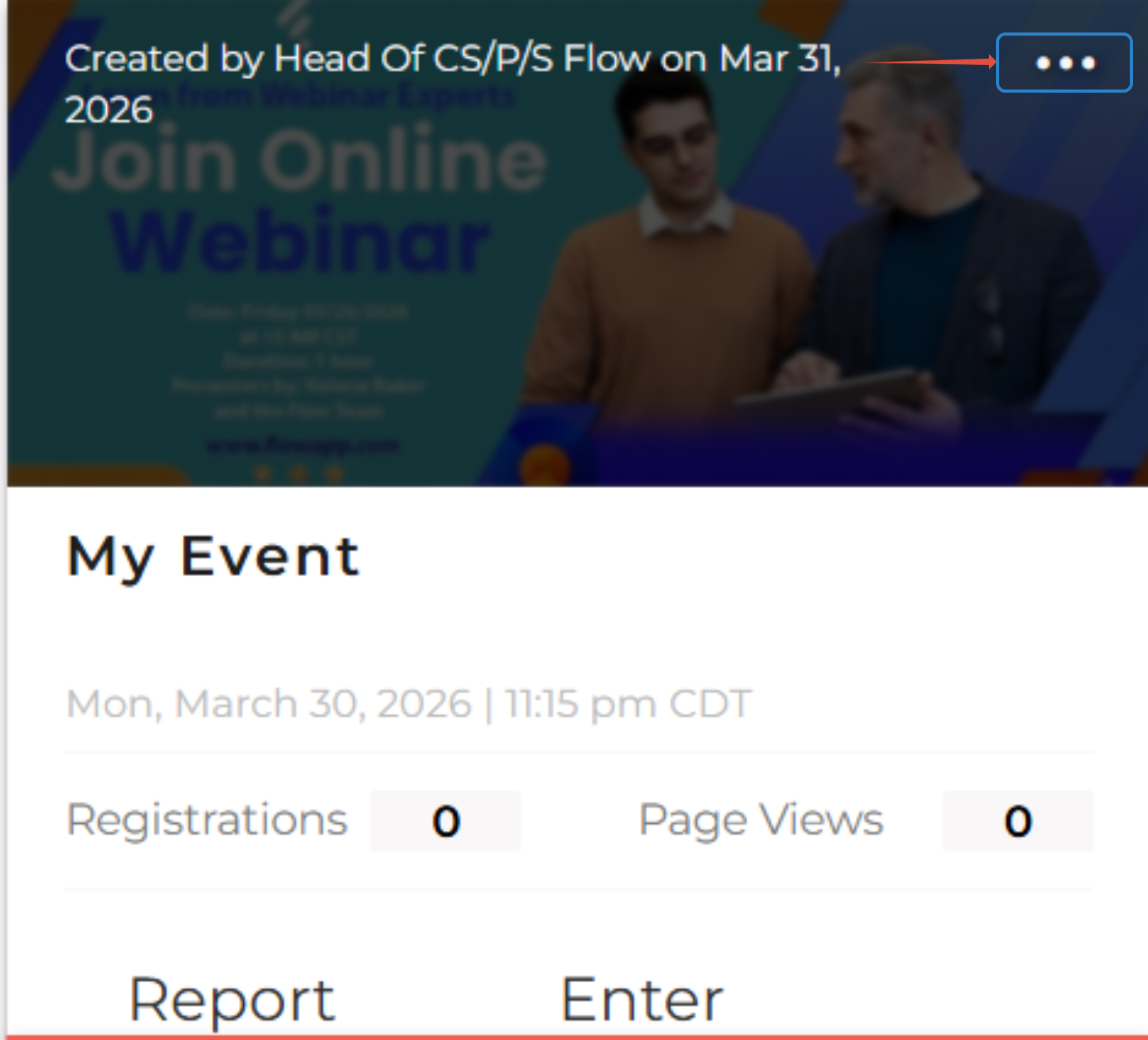
- Go to Edit and then Settings

- By default your session or event has Record Webinar enabled.
- As soon as you click the Start Event button in your webinar room, the recording starts.
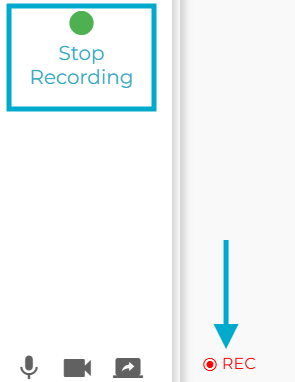
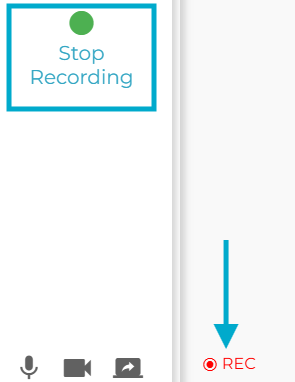
- Once the recording starts automatically, you will see the following in the webinar room
- Start Recording button turns Green
- Rec (recording started)
- By default, the maximum recording time is 4 hours.
- Once this is finished, you can create a new recording (new feature).
Recording length is limited to 4 hours.
Manual Recording
- To enable manual recording you have to disabled the aforementioned toggle in the "Automatic Recording".
- Go to "Settings" as describe above and turn off the toggle.
- Once this is off, your recording NEVER starts automatically when you click the Start Event button.
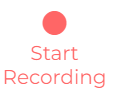
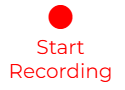
- To start the recording, Click the Start Recording button in the webinar room
Creating Multiple Recordings - New Feature
With Flow now you can create multiple recordings. Here's how to.
- Start Your Event or room by clicking Start Event button
- Click Start Recording button if it is not started automatically (which means you have set the event/room to record manually)
- Stop the recording when you are finished - Click Stop Recording
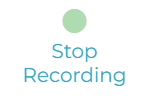
- Stay for a few seconds until you see Start Recording button again, and click it to start a new recording
- Note the maximum duration of the recording:

- You should now see the Stop Recording button back with the Rec state on
How to View Recordings (including multiple recordings) - New Feature
Was this article helpful?
That’s Great!
Thank you for your feedback
Sorry! We couldn't be helpful
Thank you for your feedback
Feedback sent
We appreciate your effort and will try to fix the article